Choosing a Raspberry Pi Browser: Speed, RAM and Sync Trade-offs
- Published
- Author
- Patrick Fromaget
- Reads
- 674
Chromium suits most Pi users, but Brave or Firefox make sense when you need sync. Benchmarks show RAM costs vary widely across five browsers.

Chromium is the default browser on Raspberry Pi OS, and plenty of people never question that choice. It's a reasonable starting point, but once you compare five browsers side by side on real hardware, the trade-offs get sharper. Memory footprint, sync support and YouTube playback all diverge quickly once you step away from the stock option.

Here's the short version. Chromium is the pragmatic pick for light browsing when you don't need sync. Brave or Firefox make more sense if you want bookmarks, passwords and settings to follow you from a desktop PC. Vivaldi rewards people who like to tinker, and Midori fits older boards or very basic needs. The details matter, though, especially on a Pi with 1GB of RAM.
Brave: privacy first, memory heavy
Best for privacy-focused users.
Brave's most useful feature is its built-in ad and cookie tracker blocking, which is on by default. It limits what websites can collect about you, and because the browser doesn't have to load ads and trackers, pages can feel quicker.

That protection pairs well with network-level tools. The author's own setup uses Pi-hole and Cloudflared on the home network, and Brave's browser-level blocking covers a similar role for someone who doesn't want to run those services. Brave is based on Chromium but supports sync and extensions, which puts it in the same conversation as Firefox on that front. It also offers Tor for private browsing, a wallet, a password manager, video calls, and an AI assistant.
That feature list is also the problem. Memory use is medium-high at idle and climbs to high once a few tabs are open. Brave's reputation carries some baggage too. The company's earlier monetization experiments, including crypto-related ones, damaged some users' trust. The browser now shows what it calls "ethical ads" on a blank tab. The tester didn't notice them in daily use, but they sit uneasily with a browser built around blocking ads.
On the plus side, Brave is mostly open source, and the testing found its performance close to Google Chrome. The benchmark numbers back that up, as discussed below. For a user who wants privacy and sync without switching to Firefox, Brave is a strong candidate, provided the Pi has enough memory to spare.
Pros and cons
- Good for: ad and tracker blocking on by default; fast loading on most sites; sync, extensions and many built-in features.
- Needs improvement: occasional loading problems or crashes on some sites; very heavy memory use, too much for some Pi models; questionable monetization history.
Installation
Brave isn't in the Raspberry Pi OS repository, so it needs a manual install. The developers provide an install script that keeps the process short. Run this in a terminal:
curl -fsS https://dl.brave.com/install.sh | sh
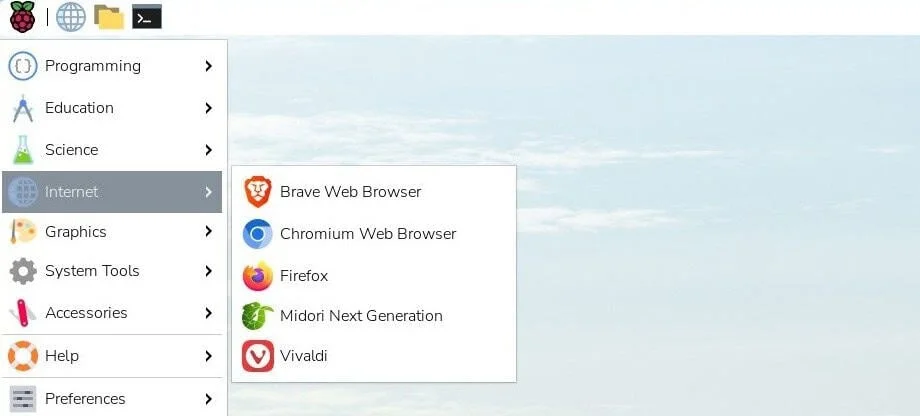
Once the install finishes, Brave appears under Pi menu > Internet > Browsers. Piping a remote script into a shell is convenient, but it's worth reading the script or checking the source before running it on a machine you care about.
Chromium: the default that holds up
Best performance overall for limited use.
Chromium is the default browser on Raspberry Pi OS and on most other Linux distributions. It isn't perfect, and it isn't the fastest option on paper, but it remains a solid choice for a Pi.
Chromium is the open-source base of Google Chrome, so anyone used to Chrome will feel at home. The interface looks familiar, Chrome Web Store extensions work, and settings carry over in the expected ways. The gap is sync. Bookmark and password synchronization aren't available, which the tester attributed to the open-source edition not including the service.
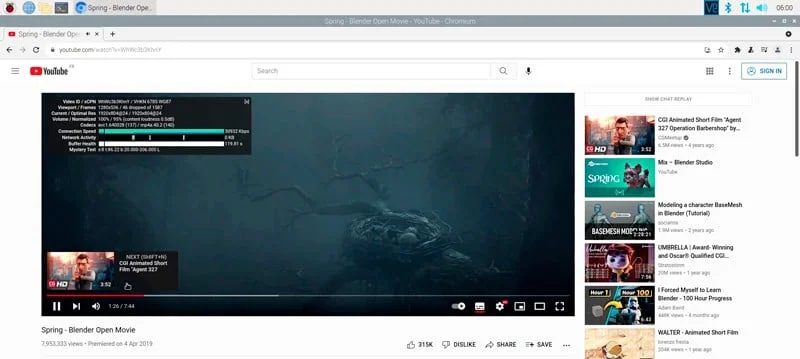
Speed is decent. It's sometimes a bit slower than the alternatives, but it stays close to the rest of the field. The Raspberry Pi Foundation has optimized Chromium for the platform, and that shows in practice. In the YouTube tests, Chromium was among the better performers. For someone who doesn't need cross-device sync, that combination of familiarity and reasonable efficiency is hard to beat.
Pros and cons
- Good for: Chrome Web Store extensions; optimization by the Raspberry Pi team; similarity to Google Chrome on PC.
- Needs improvement: no sync; decent performance but heavy for some Pi models.
Installation
Most distributions ship Chromium already, and on Raspberry Pi OS it's usually a single package away. If it isn't installed, run:
sudo apt install chromium-browser
Vivaldi: the most complete, and the most to configure
For power users who like tweaking.
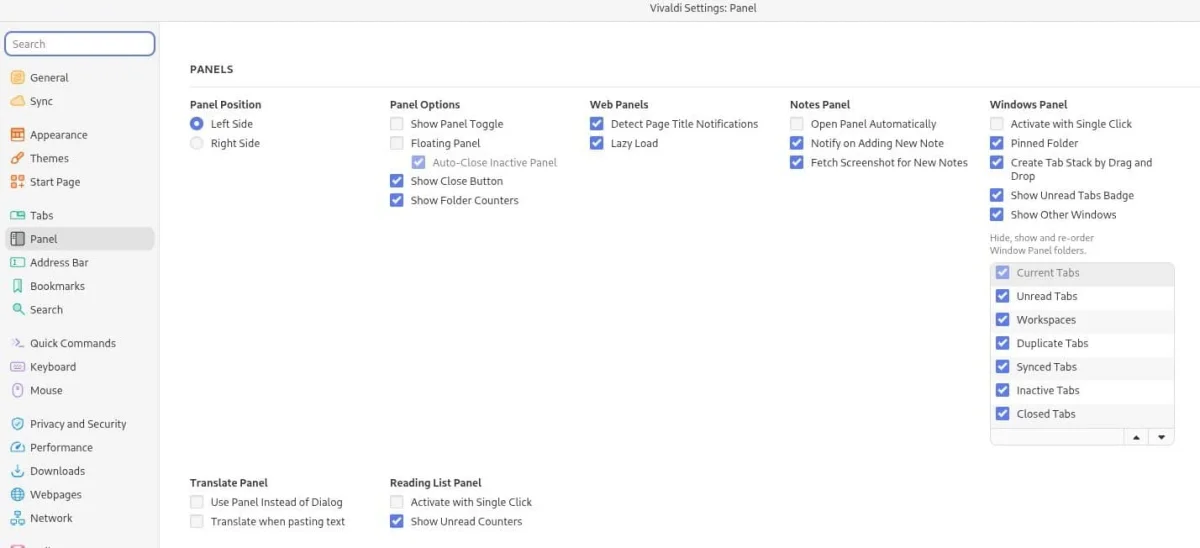
Vivaldi is built on Chromium, and it has accumulated enough features over the years to be the most complete browser the tester found for the Pi.
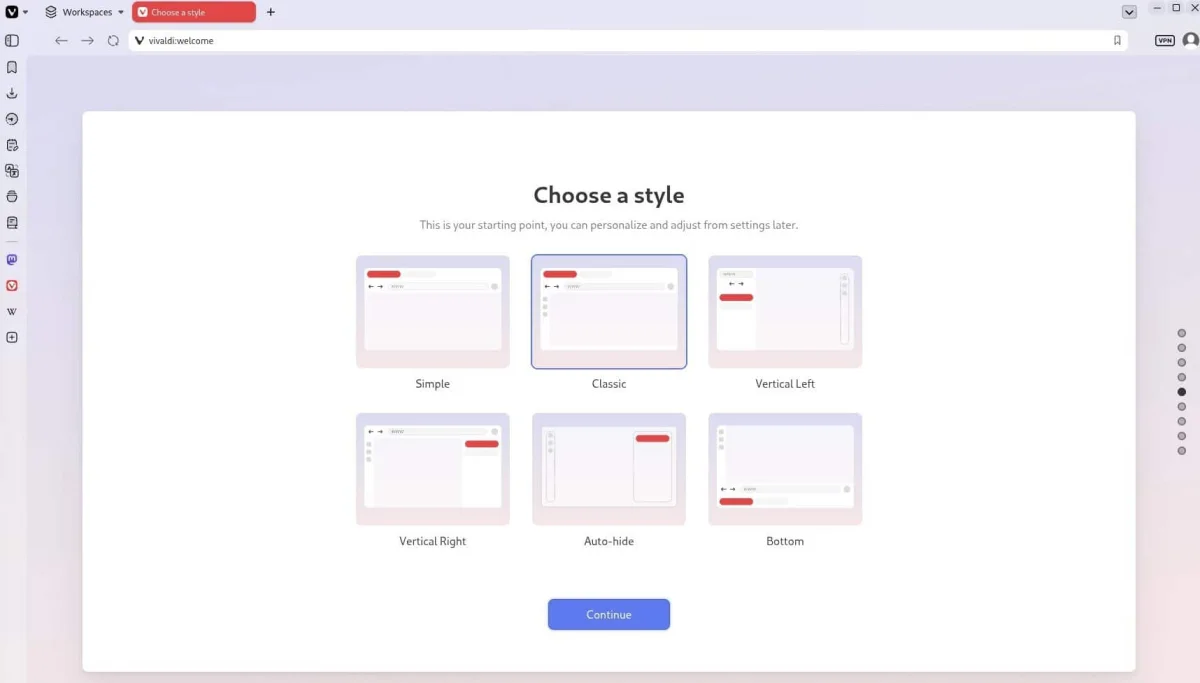
The question is whether it's too much. Vivaldi sometimes feels closer to a minimalist operating environment than a browser. On first launch, a nine-step welcome wizard asks whether you want the advanced extras, such as mail, calendar and news feeds, or just the essentials. The tester picked the "Classic" setup and still found the settings panel overwhelming.
Performance is better than the feature count might suggest. The Speedometer result was slightly higher than Chromium's, sync is available if you use Vivaldi on a PC, and Chrome extensions work. YouTube was the weak spot, with more frame drops than most of the other browsers. The tester judged that the drops weren't very noticeable when watching casually, but anyone who mainly streams video should consider another option.
The result is a browser that rewards patience. If you want the most capable browser on a Pi and don't mind spending time setting it up, Vivaldi is a good fit. Expect that setup time to be real.
Pros and cons
- Good for: good speed results despite many built-in features; deep customization; sync, extensions and themes.
- Needs improvement: overwhelming number of features and settings; unfamiliar interface with a learning curve; not fully open source.
Installation
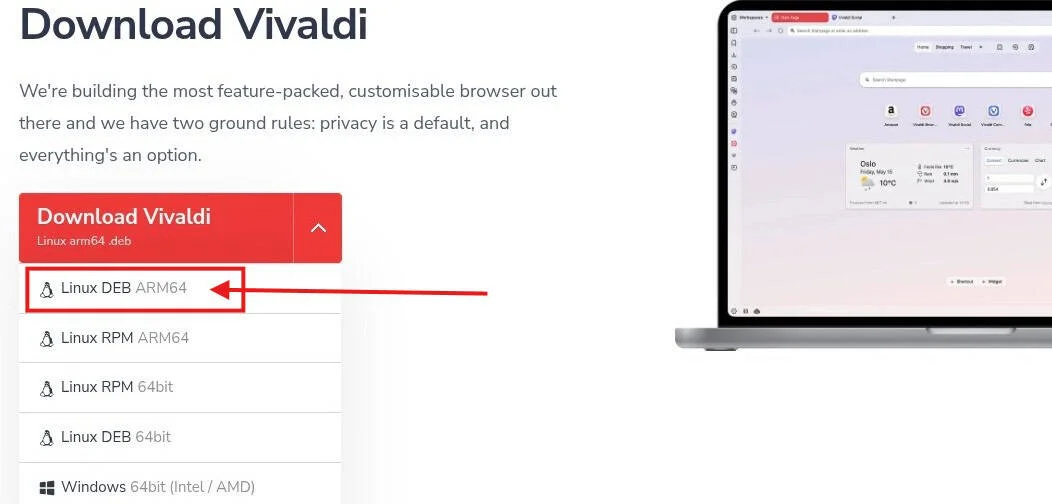
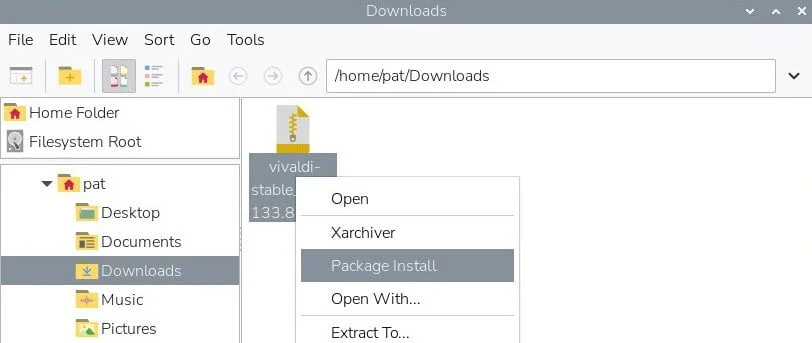
Vivaldi isn't in the Raspberry Pi OS repository, but its package installs without the terminal. The steps are:
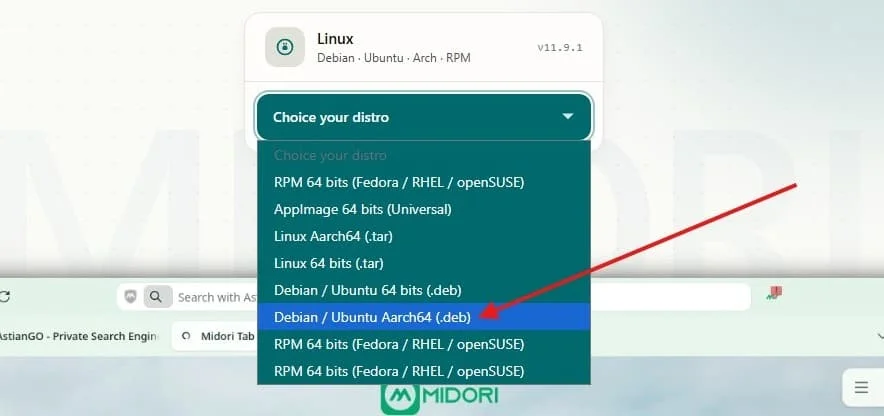
- Open the Vivaldi download page and select the ARM64 build.
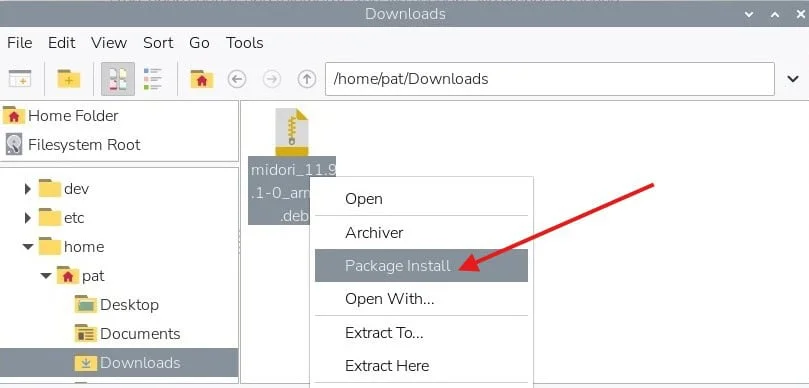
- Find the downloaded .deb file in your file manager.
- Right-click the file and choose Package Install.
- Enter your password to confirm.
Vivaldi then appears under Pi menu > Internet > Browsers.
Firefox: not Chromium, and not light
Best for sync and open-source supporters.
The tester was frank about not enjoying Firefox on the Pi, but included it for three reasons. It's the only browser on the list that isn't based on Chromium. It's popular on PCs, so many readers already know it. And it can sync settings, extensions and passwords with a desktop installation.
The trouble is weight. Firefox feels slow on the Pi, and the software seems too heavy for the hardware. It isn't the worst performer here, but the YouTube tests were poor, with frequent frame drops. Feature parity with the PC version also cuts both ways: a profile with twenty extensions and active sync will likely run worse still. The advice is to limit the extension count.
Mozilla's browser now ships with Raspberry Pi OS, and the packaged version has received optimizations that improved its behavior on the Pi. Firefox is still a good pick if you use it on a PC and need sync, provided you accept the performance cost. Anyone who wants the latest release with every feature should use Pi-Apps or a manual method, as covered in the tester's installation guide.
Pros and cons
- Good for: not based on Google Chrome; sync available; Firefox extensions; same interface as the PC version.
- Needs improvement: heavy application, requiring almost 600 MB of RAM when idle; poor YouTube experience.
Installation
Raspberry Pi OS includes a stable Firefox package by default, so updating the system is usually all it takes. For the newest release with all features, use Pi-Apps or follow a dedicated install guide.
Midori: minimal, and mostly for old hardware
For when you want something simple.
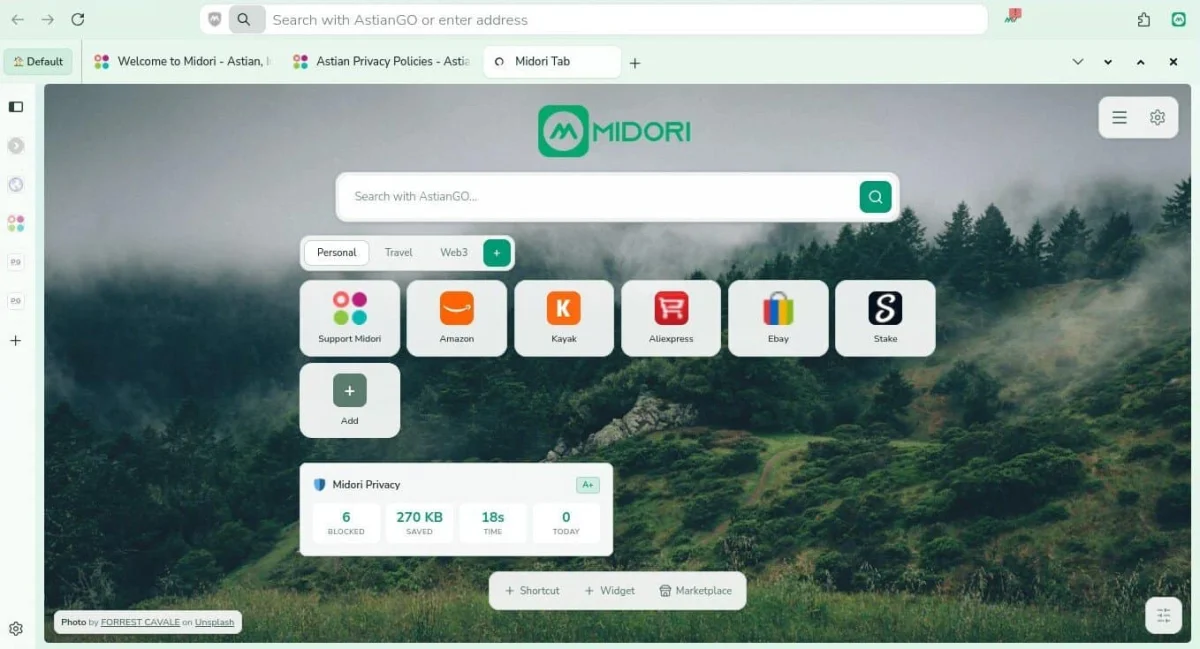
Midori is a minimalist browser that suits older Raspberry Pi models, especially if you don't need many features.
A good use case is a Raspberry Pi Zero running as a server with a desktop still installed. Midori can open a documentation page quickly without launching a heavier browser that would compete with the server for resources.
Its limits show up fast, though. Midori's Speedometer score sat in the middle of the pack, and its memory use came in above Chromium's in the benchmark table. Multi-tab browsing is about the only feature it handles well. Settings are sparse, and the few extensions available are limited. The tester tried an ad blocker and found it didn't work on most websites.
Pros and cons
- Good for: minimalist design; easy to use; works on older Raspberry Pi boards.
- Needs improvement: weak speed results and a poor YouTube experience; heavy on memory for the few features it offers; extensions don't work.
Installation
Midori is no longer in the default repository or on Pi-Apps, so it has to be installed by hand:
- Open the Midori download page.
- Select the Debian Aarch64 build, the 64-bit package for ARM processors. The download should start automatically.
- Find the .deb file in your Downloads folder.
- Right-click it, choose Package Install, and confirm with your password.
The browser then appears under Pi menu > Internet > Midori.
Benchmark results
The tester ran all five browsers on Raspberry Pi OS Trixie. Speed came from the Speedometer 3.1 benchmark, which runs a series of web-app tasks such as checking items in to-do lists. Memory was measured while loading the RaspberryTips homepage, with nothing else running on the Pi.
| Browser | Speedometer result | RAM used |
|---|---|---|
| Brave | 6.55 | 540 MB |
| Chromium | 5.13 | 548 MB |
| Vivaldi | 5.94 | 653 MB |
| Firefox | 5.04 | 776 MB |
| Midori | 5.18 | 682 MB |
Brave posted the top Speedometer score, and its RAM figure was the lowest in the table, which is worth noting given its reputation for heavy use with many tabs open. Chromium's memory footprint was almost identical to Brave's in this single-page test. Firefox used the most memory, at 776 MB. The tester's PC scored 19.1 on the same benchmark, a reminder that hardware sets the ceiling for everything on this list.
The RAM column is a single-page snapshot, not a worst case. It indicates how heavy each browser will be on your system, but a Pi with 1GB of RAM will feel the difference much more when several tabs are open. On that kind of board, the tester warned that Vivaldi and Firefox will slow everything else down.
Which one to pick
My read is that the choice comes down to two questions: do you need sync, and how much memory can you spare?
- Chromium for general use if you don't need sync with a PC.
- Brave or Firefox if you already use them on a PC and want sync. Brave is the lighter of the two in the benchmark, and Firefox is the heavier one.
- Midori for basic tasks, particularly on older Pi models.
- Vivaldi if you enjoy tinkering and want to shape the browser around your habits.
Privacy-minded users can also consider Tor Browser, which the tester described as something like Firefox in extra-private mode. It's a separate decision from the everyday browser, but worth knowing about. Readers who have a different set of criteria, such as battery life on portable Pi builds or kiosk use, will find these results a starting point rather than the final word. Test the candidates on your own workload before committing, especially if your Pi runs other services alongside the desktop.